- Learn all the methods for resetting Android, from the standard reboot to a hard reset via recovery or PC.
- Includes tablet-specific solutions and common issues after a restart or restore.
- Discover key precautions and the importance of backups for every process.

The Android operating system is undoubtedly the preferred mobile platform for millions of users worldwide. Its popularity stems from its versatility, the wide variety of brands and models it's available on, and a constantly innovating community. However, its multifaceted nature , the variety of hardware and software, and manufacturer customizations can sometimes lead to unexpected problems: crashes , automatic restarts , slowdowns , app failures, or system errors.
In these scenarios, knowing all the ways to restart Android and the solutions to reactivate the system becomes an indispensable skill. Whether your device is unresponsive, frozen, won't boot properly, or you simply want to give it a fresh start before selling it, understanding each procedure will help you protect your data and save time or unnecessary visits to technical support.
This definitive and constantly updated article covers all possible ways to reset and restore Android : from soft resets and standard methods to hard resets, recovery mode, using ADB commands, and the best recommendations from the expert community. You'll find a comprehensive explanation, basic precautions, solutions for when physical buttons aren't working, common problems after a restore, and specific instructions depending on the make and model of your phone or tablet.
Why it's essential to know how to restart Android in any situation

Android is a robust system, but not infallible. Daily use, multiple apps, file downloads, updates, and customization can overload the system and cause various levels of failure:
- Total system crash: The screen freezes and does not respond to any touch or button.
- Slowdown and lag: after an update or installing poorly optimized apps.
- Persistent app errors: Apps that crash, stop working, or disappear unexpectedly.
- Malware or virus: that affect performance or put your data at risk.
- Preparing for Change of Ownership: Selling, giving away, or recycling your device requires cleaning it.
- Bootloop: when the mobile does not go beyond the initial power-on animation.
- Battery problems: abnormal consumption or rapid exhaustion.
Mastering the different restart and restoration methods allows you to:
- Restore the functionality and speed of your mobile phone or tablet without losing valuable information.
- Troubleshoot without always resorting to technical support.
- Eliminate errors after failed app installations or updates.
- Protect your privacy by completely wiping your data before transferring your device.
A clean reboot of Android is a quick and effective solution for most everyday problems and emergency situations.
Basic Reset Options on Android: The Standard Step-by-Step Method

The simplest and most common method is to restart the device using the power button . Although the button's position and the menu's appearance may vary depending on the brand (Samsung, Xiaomi, Motorola, OPPO, etc.), the procedure is very similar:
- Hold down the power button for 2 to 5 seconds.
- When the shutdown menu appears, select "Restart"If only "Power off" appears, select that option, wait for the device to completely shut down, and then turn it back on.
- Wait for Android to start and check if the problem is resolved.
On some recent models, holding down the power button activates Google Assistant. In those cases, swipe down from the top of the screen to open the notification panel , find the power icon, and select restart from there.
This simple restart is effective for fixing minor crashes , improving regular performance, and freeing up RAM occupied by background apps.

How to restart Android if the physical button doesn't work or is damaged

If your power button is broken or unresponsive, Android offers hardware-free alternatives:
- Quick settings panel: Swipe down from the top to open the panel, find the power icon, and select “Restart.”
- Software access: Some customization layers (such as MIUI, One UI, EMUI, etc.) include reset access buttons in menus or widgets.
- Reset applicationsUse apps like Power Menu, Quick Reboot, or similar apps available on Google Play. These are useful if your phone is rooted, but there are alternatives that work without root in many cases.
Keep in mind that these options may vary between manufacturers and systems, so check with official support or your manual to find the specific function for your model.
Another option is to wait for the battery to run out and then force shut down, although this is neither recommended nor quick, except in emergencies.
Advanced Methods: Force Restart Android When It's Absolutely Unresponsive

When your phone freezes completely (screen is stuck, no buttons respond), you need to force a restart using a combination of physical keys . While this may vary depending on the brand, most devices follow these steps:
- Press and hold simultaneously the power button + volume down button for at least 10 seconds.
- On other models, the combination may be power + volume up or include some other physical button (home, Bixby, etc.).
- The device will be forcibly turned off and you can turn it back on by pressing the power button.
This forced restart is safe and does not erase data , but it is the only effective method to recover a system that is completely frozen or in a boot loop (temporary bootloop).

Restart Android by removing the battery (only if it is removable)
On older Android models—or a few current ones with removable batteries—you can perform a direct “power cut”:
- Turn off the device from the menu if it responds. If not, hold the power button until it turns off.
- Carefully remove the back cover and remove the battery.
- Wait about 15 to 30 seconds to ensure all residual energy dissipates.
- Replace the battery and cover, turn on the device.
This method removes persistent locks , but it only works on devices designed for it. Do not attempt to open phones with a fixed or integrated battery, as you could damage components or void the warranty.
Android Recovery Mode: The Ultimate Tool for Restoring and Troubleshooting Serious Errors

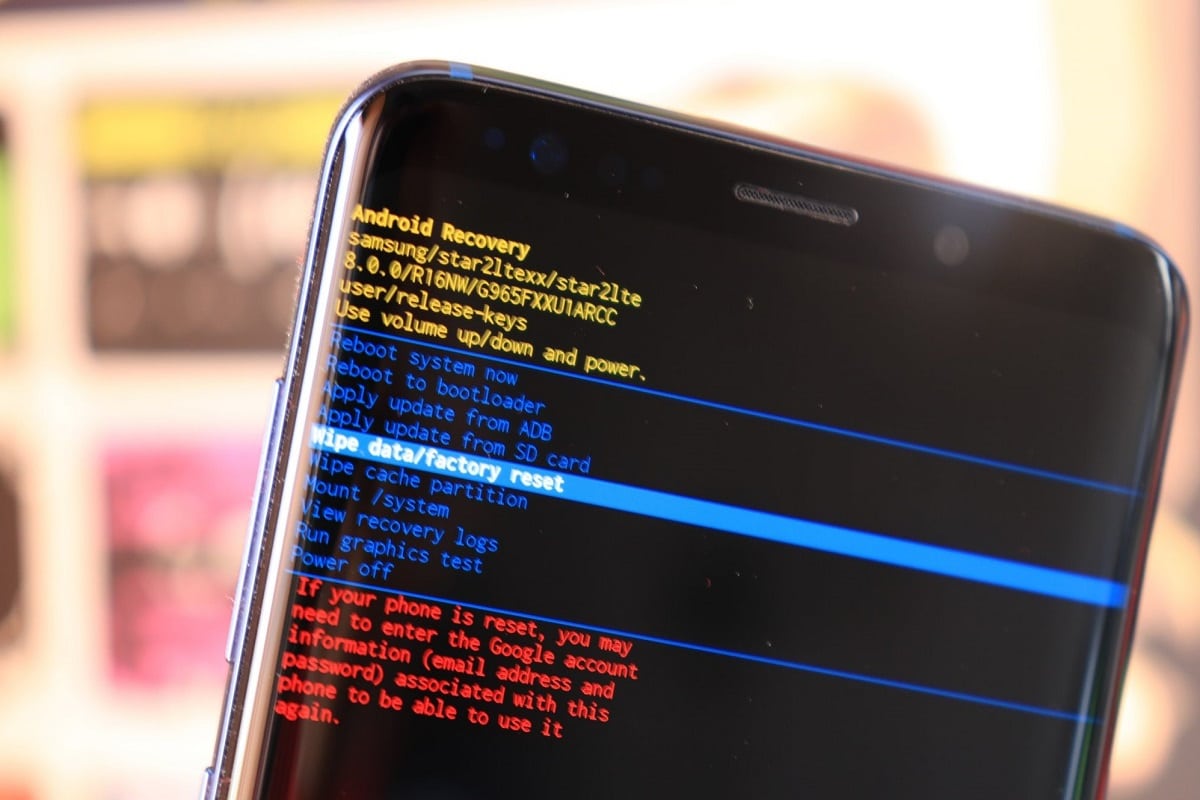
Android's recovery mode is a separate partition, accessible even if the operating system is damaged or won't boot. It allows you to perform advanced recovery actions :
- Hard reset.
- Clearing the system cache.
- Installing updates.
- Wipe data (“clear data”) to remove settings or troubleshoot boot loops.
Accessing recovery mode varies depending on the brand:
- Samsung: Mobile off, press and hold volume up + Bixby button (if it has one) + power.
- Xiaomi: Power + volume up, or from the Updater app.
- Huawei, Asus, BQ: Power + Volume up.
- LG, Motorola, Google Pixel: Power + volume down.
- HTC: Volume up + power.
In recovery, navigate with the volume buttons and select Power. Choose "Wipe data/factory reset" and confirm. Once the process is complete, select "Reboot system now."
Warning: A hard reset from recovery will erase all your personal data, apps, and settings. Only perform this as a last resort or before transferring your device.
Factory reset from system settings

If your Android is working and you can access the menus:
- Go to Settings > System > Reset options.
- Choose Clear all data o Factory data reset.
- Confirm with a PIN, pattern, or password; accept the warnings.
- The phone will reboot and erase all data, leaving it as good as new.
The exact location of the option may vary (General Management, Backup, etc.) depending on the brand and version of Android.
Remember to create a backup before proceeding to avoid losing files, photos, apps, or personal data.
Soft reset options on Android: Beyond the hard reset
In addition to a complete wipe, some manufacturers allow you to reset only specific system components , without losing your photos or documents:
- Reset Network Settings: Deletes configured Wi-Fi, Bluetooth, and mobile phones.
- Reset app preferences: Returns default apps and permissions to their original state.
- Reset Bluetooth and Wi-Fi connections: Useful if you are having problems only with the internet or paired devices.
- Delete a private space: In recent versions, allows you to remove hidden app spaces.
These options don't affect your personal files, and are perfect if you're experiencing localized connection or app issues without losing everything.
How to reboot Android using ADB commands from your PC
If your device is partially functional or accessible via USB, ADB (Android Debug Bridge) allows you to reboot it or access recovery from a computer:
- Active USB debugging from Settings > About phone > Developer options.
- Install ADB on your PC (available for Windows, macOS, and Linux).
- Connect the device via USB.
From the computer terminal run:
- adb reboot — reboot the device normally.
- adb reboot recovery — reboot directly into recovery mode.
- adb reboot bootloader — access the bootloader.
This is useful when buttons do not work or the system has a serious fault but responds via PC.
How to restart Android tablets and other Android devices

The general procedure is the same for tablets and mobile phones, but some models (especially budget tablets or lesser-known brands) may have their own combinations for restarting or restoring.
- Press and hold the power button (and volume up/down if unresponsive).
- If you have a physical menu button, you can use it to access recovery.
- Consult the manufacturer's manual or website for specific combinations.
On Android TV, Mi Box, and other devices, the procedure is similar: use the remote control to access Settings > System > Reset, or perform the corresponding button combination if the system is frozen.
How to reset Android by brand: Samsung, Xiaomi, Huawei, OPPO, Motorola, and more
Each manufacturer, due to its customization layer, can modify the system routes and options:
- Samsung: Settings > General management > Reset > Factory data reset. For recovery: Power off, hold Power + Volume up + Bixby.
- Xiaomi, Redmi, Poco: Settings > About phone > Factory reset > Erase all data. Recovery: Power + Volume up.
- Huawei: Settings > System > Reset > Reset phone. Recovery: Power + Volume Up.
- OPPO/Realme: Settings > Additional settings > Backup & reset > Erase all data.
- Motorola/Google Pixel: Settings > System > Reset options > Erase all data.
Always check your manufacturer's website for current instructions. Some models include specific tools such as secure reset or cloud recovery.
Essential backups and precautions before any reboot or hard reset

Before resetting your Android—especially if you're doing a factory reset—follow these steps to avoid losing important information:
- Make a backup using Google Drive, Samsung Cloud or backup apps.
- Save photos, videos, documents, and WhatsApp chats to the cloud or your computer.
- Unlink your Google account If you are going to transfer the device, to avoid blocking by FRP (Factory Reset Protection).
- Remember your Google credentials, as they will be required to reactivate the device after the reset.
- Check that you have enough battery or keep the device plugged in during the process.
Steps to make a general backup:
- Settings > System > Backup.
- Turn on automatic backup.
- For WhatsApp chats: Settings > Chats > Backup.
If your data is especially valuable, consider backing up your data manually to your PC using specialized software like FoneLab for Android.
Alternative solutions: custom recovery, third-party software, and advanced restoration
If the factory recovery doesn't respond, the phone is bricked (doesn't boot at all), or the problem is more serious , there are advanced tools available:
- Custom Recovery (TWRP, OrangeFox, etc.): They allow advanced restores, flashing ROMs, selective backups, and much more. They require an unlocked bootloader and advanced knowledge.
- ADB and Fastboot: From the PC, they can reinstall the operating system, update the firmware, recover a boot-looped mobile phone, etc.
- Trading Tools: Programs like Dr.Fone allow you to remove screen locks, restore lost data, or reset your device if you forget your PIN.
These options may be necessary in extreme cases and should only be used if other solutions have failed and you have the technical knowledge to avoid further damage.
Common errors after a factory reset or restore and how to fix them
After resetting or restoring an Android, some common issues may occur:
- Does not sync contacts, photos or apps: Make sure your Google account is correctly added and turn on sync from Settings > Accounts.
- App not working properly: Update the app from Google Play or reinstall it.
- Request Google account after reset: Enter the details of the previously associated account (FRP protection).
- Boot loop after reset: Enter recovery mode and perform a data wipe again. If the problem persists, contact technical support.
- Recovery does not start: Try alternative button combinations or find official instructions for your model.
Real-life cases where it is essential to restart or restore Android
- Drastic drop in performance after installing apps or a major update.
- The system enters a boot loop and does not go past the manufacturer's logo.
- Apps constantly disappearing or failing.
- Persistent presence of malware that does not disappear after uninstalling suspicious apps.
- Before selling, donating or recycling your mobile phone to delete all sensitive information.
Frequently Asked Questions About Resetting and Restoring Android
- Does wiping factory data delete photos and files?
Yes, unless you back up or store it in the cloud or SD card. - Does hard reset delete Android version?
No, the installed version remains. It only deletes user data and apps. - Can data be recovered after a hard reset?
In most cases no, that's why you should always make a backup first. - Does hard reset remove viruses and malware?
Normally yes, except for exceptions where the malware is in the ROM. - What do I do if I don't remember my Google account after resetting?
You will need to enter the username/password originally associated with the device. - Why is my device still slow after a reboot?
This could be due to an incompatible update, problematic apps, or limited hardware. Consider restoring from recovery. - Can you reset Android without losing data?
Yes, only a standard reset or partial settings reset will preserve your files.
Rebooting, restoring, and mastering Android recovery mode allows you to fix most critical system issues and maximize the lifespan of your device. This way, you can enjoy a fast, secure, and optimized phone or tablet.
Table of Contents
- 1 Why it's essential to know how to restart Android in any situation
- 2 Basic Reset Options on Android: The Standard Step-by-Step Method
- 3 How to restart Android if the physical button doesn't work or is damaged
- 4 Advanced Methods: Force Restart Android When It's Absolutely Unresponsive
- 5 Restart Android by removing the battery (only if it is removable)
- 6 Android Recovery Mode: The Ultimate Tool for Restoring and Troubleshooting Serious Errors
- 7 Factory reset from system settings
- 8 Soft reset options on Android: Beyond the hard reset
- 9 How to reboot Android using ADB commands from your PC
- 10 How to restart Android tablets and other Android devices
- 11 How to reset Android by brand: Samsung, Xiaomi, Huawei, OPPO, Motorola, and more
- 12 Essential backups and precautions before any reboot or hard reset
- 13 Alternative solutions: custom recovery, third-party software, and advanced restoration
- 14 Common errors after a factory reset or restore and how to fix them
- 15 Real-life cases where it is essential to restart or restore Android
- 16 Frequently Asked Questions About Resetting and Restoring Android