- Fastboot is an advanced boot mode in Android that allows you to flash, repair, and unlock devices at a deep level.
- Exiting Fastboot is possible using button combinations, commands, or specialized tools, thus avoiding critical errors.
- Caution and knowledge are required to avoid data loss or system damage; backups and proper firmware are essential.

Fastboot is one of the most frequently used terms among advanced Android users, yet it remains largely unknown to those who have never needed to troubleshoot critical issues, customize devices, or install a new operating system on their mobile phone. However, at some point, whether by accident or out of a genuine interest in exploring the Android world, many of us stumble upon this special mode and wonder: what exactly is Fastboot mode, and how can it be disabled?
In this comprehensive and up-to-date guide, we provide you with all the necessary knowledge about Fastboot: from its operation, practical uses, risks, and differences from other system modes, to how to enter and exit Fastboot on virtually any device (with special attention to Xiaomi, Redmi, POCO, and other popular brands), how to avoid problems, and what to do if your phone becomes unresponsive or gets stuck in this mode. You'll also learn about advanced commands and essential tools associated with this environment.
What is Fastboot mode on Android?

Fastboot mode is an advanced tool built into most Android devices. It's a communication protocol and a special boot environment that allows users to send direct commands to the phone's bootloader. This enables operations that go far beyond traditional usage capabilities: from firmware updates, partition installation or wiping, bootloader unlocking, flashing custom ROMs, factory resets, recovering a locked device, and much more.
Essentially, Fastboot makes it easy to modify and repair your phone's software without having to fully load the Android operating system. This is vital if your device won't boot, is stuck on the logo, or has suffered a serious malfunction.
We highlight the following points about Fastboot:
- Standalone mode: Works outside of Android, allowing access and modification of the system even if the operating system is corrupted.
- Restricted access: It is aimed at developers, technicians and advanced users, as it offers full access to critical partitions of the device.
- Protocol and tool: Fastboot is both a communication protocol and a tool included in the Android Studio SDK in the folder
platform-tools. - Not available on all models: Most Android manufacturers include it (especially Xiaomi, Redmi, POCO, OnePlus, Google Pixel, among others), but some limit it or replace it with other modes (Samsung implements "download mode").
What is Fastboot mode for?

Fastboot mode has a wide variety of applications, and while many people only encounter it by mistake, for others it's a must-have feature for:
- Flashing custom ROMs: Install a different version of Android (ROM) or switch between versions of MIUI, HyperOS or pure Android.
- Manually update the operating systemIf the manufacturer doesn't provide an OTA or if the phone won't boot, you can install a new version of the software.
- Unlock the bootloader: An essential step before installing custom ROMs, rooting your phone, or installing a modified recovery like TWRP.
- Factory reset mobileIf the system has suffered damage or unrecoverable errors, Fastboot allows you to completely erase the data and return the phone to factory settings.
- Repair stuck devicesIf your phone is stuck on the logo, black screen, or unresponsive, booting into Fastboot is often the starting point for recovery.
- Create and restore system-level backups: Preserving critical data before a flash or restore.
- Install recovery images: Install custom recoveries or system images to extend maintenance capabilities.
- Troubleshoot boot problems: Diagnosing serious software errors and executing rescue commands.
- Run advanced commands: Manage partitions, wipe caches, clean the system, flash kernels and even modify the boot.
However, improper use of Fastboot mode can lead to fatal errors . It is crucial to understand that unless you know exactly which commands you are entering and why, you could delete critical data, erase the ROM, render the system unusable, or brick your device.
Differences between Fastboot, Recovery, and other special Android modes

Users often confuse Recovery mode with Fastboot. While both grant access to advanced features outside of Android, there are key differences:
- Recovery mode: Allows you to perform factory resets, wipe cache, install OTA or SD card updates, mount partitions, and run basic scripts. It is usually accessible with power button + volume up, although the method varies depending on the manufacturer.
- Fastboot mode: Gives access to low-level commands and allows you to modify any partition on the system, even when Android won't start. Requires a USB cable and communication with a computer using the SDK's Fastboot tool or manufacturer's utilities.
- Download mode: Usually present in Samsung and some specific manufacturers, this mode is dedicated to flashing via Odin or other proprietary software.
- Safe Mode: Designed to boot only system apps, useful for detecting problematic apps, but without access to system partitions or advanced features.
The main advantage of Fastboot is its independence from the Android state . It allows you to manipulate the device even if Android is corrupted or unusable, as long as the bootloader is accessible.
How to enter Fastboot mode?

Accessing Fastboot varies slightly depending on the brand and model, but generally, the process involves a combination of physical buttons , along with first enabling developer options . We'll explain the usual steps in detail:
- Activate developer options:
- Go to your mobile settings.
- Go to the “About the phone” section.
- Tap “Build Number” or “MIUI Version” several times (usually 7 times) until you see that Developer Options are enabled.
- Turn off the device completely.
- Press and hold (simultaneously) the power and volume down buttons until a special screen appears (usually with the Fastboot logo and, on Xiaomi, the MITU mascot fixing the android).
- Connect the mobile to the computer to be able to interact with Fastboot commands from the PC via USB cable if desired.
On some devices (such as the Google Pixel or OnePlus), the input may vary (e.g., using power + volume up), so you should check the specific method depending on the model.
It is also possible to access using ADB commands from the computer:
- With the phone on and connected to the PC, open a terminal and run:
adb reboot bootloader
The device will reboot directly into Fastboot mode.
How to get out of Fastboot mode?

Exiting Fastboot is usually a straightforward process when everything is working correctly. However, if your device is stuck after attempting a flash, updating, or accidentally, there are several methods to exit this environment without damaging your phone:
- Forced restart: Press and hold the power button for 10-15 seconds continuously until the phone shuts down and restarts normally.
- Physical button combination: If a traditional restart doesn't work, try holding the power and volume down buttons simultaneously for 10 to 15 seconds until the device turns off and then restarts.
- Access the Recovery menu: If you're still in Fastboot after restarting, turn your phone off, then turn it on by holding down the power and volume up buttons (some models use the volume down button). Once in the Recovery menu, use the volume keys to navigate to "Reboot system now" and confirm with the power button.
- Using Fastboot Commands: With the phone connected to a computer and the connection recognized, run the command in the terminal:
fastboot rebootThe phone should reboot and exit Fastboot. - Specialized repair tools (optional): If none of the above options work, you can go to DroidKit, Mi Flash Tool (on Xiaomi) or other proprietary utilities to force exit Fastboot and repair the system.
In the specific case of Xiaomi/Redmi/POCO, the process is usually:
- Press the power button for a long time (10-15 seconds).
- If the phone keeps booting into Fastboot, repeat the process by pressing power + volume down together for 15 seconds.
- If it still persists, access Recovery and choose “Reboot system now”.
In more serious situations, such as ROM failures or hardware issues, it may be necessary to reinstall the official firmware using specific tools or contact technical support.
Main risks and precautions when using Fastboot

Although Fastboot is an extremely useful tool, its misuse can cause irreparable damage to your device . It is vital to be aware of the risks and take precautions.
- Possibility of bricking the device: Running wrong commands or flashing wrong files can render your phone unusable (brick).
- Total loss of dataFlashing or formatting from Fastboot erases all partitions and user data, so you should make backups before any intervention.
- Bootloader Unlocking and Warranties: Unlocking the bootloader may void your device’s warranty and leave security holes open.
- Corrupt or incompatible files: Installing an incompatible ROM or recovery may prevent the system from booting, requiring more complex recovery procedures.
- Interruptions during the processIf your phone shuts down due to low battery or disconnects during a flash, the risk of damage increases significantly.
- Non-functional USB connections: Not all cables are suitable for data transfer. Always use original or certified cables.
Pro tip: If you're unsure what you're doing, limit your interaction with Fastboot. Consult tutorials specific to your device model and always keep your device's original firmware handy.
How to prevent accidental entry into Fastboot
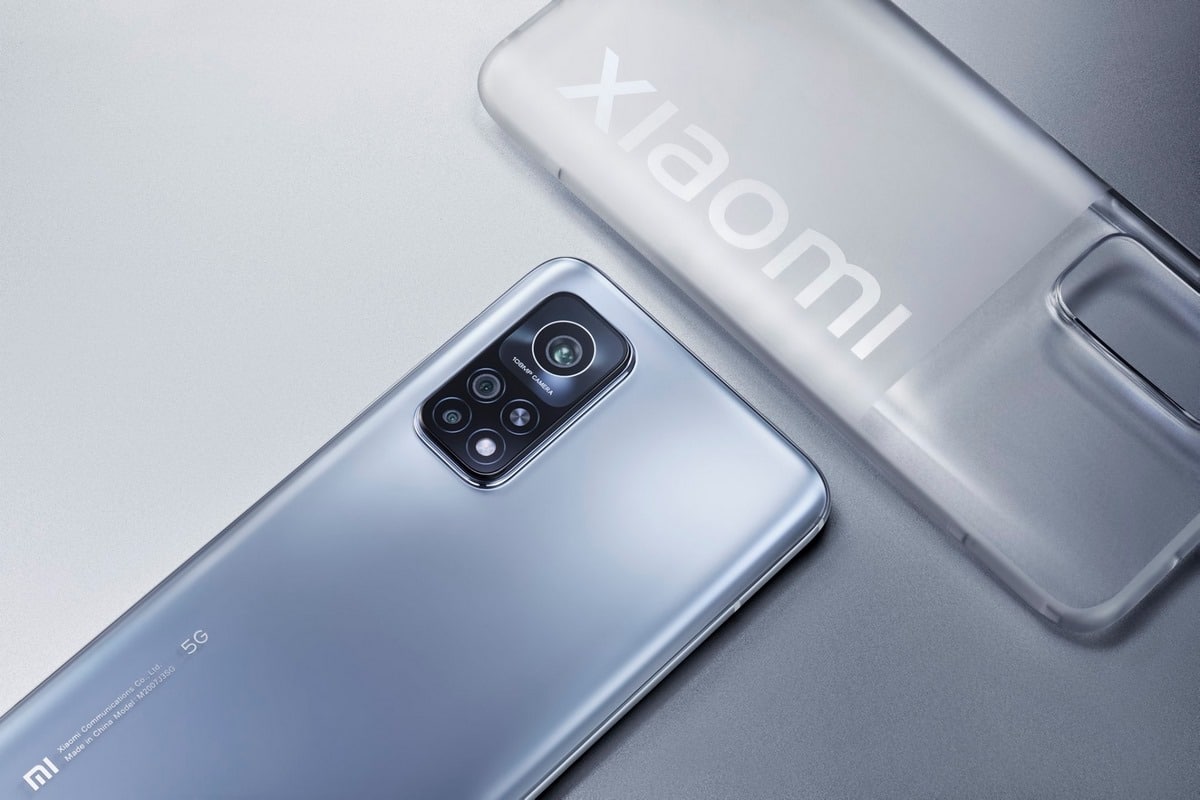
Entering Fastboot by mistake is more common than you might think, especially when the side buttons are pressed simultaneously while the device is off (for example, when putting the phone in your pocket or using a hard case that accidentally presses both buttons). What can you do to prevent this?
- Know your device's combination and handle the buttons carefully.
- Avoid cases that press physical buttons easily.
- Do not handle the phone when it is off unless necessary.
- If your phone restarts abnormally or gets stuck in Fastboot several times, check the physical condition of the buttons., as well as the health of the installed ROM.
Key commands and tools associated with Fastboot
Fastboot's capabilities are expanded by using commands executed from a PC. Some of the most commonly used are:
fastboot devices– Check that the phone is properly connected to the PC.fastboot reboot– Reboot the device and take it out of Fastboot.fastboot oem unlock– Unlock the bootloader (may vary by manufacturer).fastboot flash recovery recovery.img– Flash and install a custom recovery image.fastboot flash system system.img– Flash a system image.fastboot erase userdata– Erase all user data (factory reset).fastboot update update.zip– Update the system using a compatible zip package.
Featured Tools for Fastboot:
- Android SDK Platform Tools: Includes Fastboot and ADB executables for all platforms (Windows, Mac, Linux).
- DroidKit (optional): Provides rescue capabilities for devices that won't exit Fastboot, with a simple graphical interface.
- Mi Flash Tool (Xiaomi): Official utility to flash original ROMs and recover Xiaomi, Redmi and POCO devices.
- TWRP and other custom recoveries: They can be installed via Fastboot to expand recovery and customization possibilities.
Fastboot on Xiaomi, Redmi, and POCO: What you need to know

Of all manufacturers, Xiaomi (and its sub-brands Redmi and POCO) are the ones that have popularized Fastboot mode among the general public. This is because:
- Their devices incorporate Fastboot natively.
- Accidental entry is often frequent due to its key combination.
- Allows a wide variety of advanced operations thanks to I Flash Tool.
When accessing these models, the iconic MITU mascot appears fixing the android: this indicates that you are in Fastboot, but the phone is not damaged (unless you perform improper actions).
Step by step to exit Fastboot on Xiaomi, Redmi and POCO:
- Press and hold the power button for 10 to 15 seconds.
- If it doesn't work, please press and hold both: power + volume down for 15 seconds.
- If that still doesn't work, access the recovery menu and select "Reboot system now."
- In case of severe crash, please use the original ROM to restore the system.
- If all else fails, please contact official technical support.

Additional tips for Xiaomi devices:
- Always download official ROMs from the manufacturer's website and make sure they match your model exactly (Global, European, Chinese, etc.).
- Unlocking the bootloader may require permissions and a prior process from the official Xiaomi website, with a wait time of up to several days.
- Once in Fastboot, you can check the bootloader status and other advanced features in the USB debugging section.
- Avoid USB cables that are only for charging; they must be data cables so that the PC can recognize the device.
Common problems and solutions if your phone won't exit Fastboot
Sometimes, even after trying the usual methods, your phone still gets stuck in Fastboot. This is usually due to corrupted system files, a corrupted ROM, or errors during flashing. What should I do?
- Please try the hard reset combination again., making sure you press the correct buttons.
- Fully charge the battery and make sure your phone doesn't turn off during the process.
- Use or equivalent tool to reinstall the official firmware:
- Download the appropriate ROM for your model from the Xiaomi website.
- Launch Mi Flash Tool and select the downloaded ROM.
- Connect your phone in Fastboot mode and run the process following the instructions.
- If the PC does not recognize the device, try different ports, original cables and reinstall ADB/Fastboot drivers on the computer.
- For extreme cases, when the original ROM does not work or the device does not respond to any commands, it is advisable to go to official technical support.
Frequently Asked Questions about Fastboot on Android
- Can I use Fastboot on Samsung phones? Instead of Fastboot, Samsung implements "download mode" for similar operations using its ODIN tool. Fastboot doesn't typically work on these devices.
- What happens if I enter Fastboot by mistake? As long as you don't execute commands or flash files, there's no danger. Simply restart your phone using the methods explained.
- Is data lost when exiting Fastboot? If you just enter and exit Fastboot, no. But if you execute wipe, flash, or reset commands, your data will be erased.
- Is it safe to unlock the bootloader? Technically yes, but it can void your warranty and increase your risk of malware if you install unofficial or modified ROMs.
- Is a PC required to use Fastboot? To execute advanced commands yes, but to log in and out, you only need the device itself.
- What do I do if Fastboot doesn't recognize my device? Reinstall the drivers, try a different cable/port, and make sure the phone is in Fastboot mode correctly. Use the command
fastboot devicesto check the connection. - What does the MITU logo fixing the android mean? This is Xiaomi's visual indicator that the device is in Fastboot. It doesn't indicate any serious errors other than the phone not booting normally.
Fastboot on other Android manufacturers: differences and specifics
Although Fastboot is common on many phones, each manufacturer may add modifications and require specific commands :
- OnePlus: In addition to the classic Fastboot mode, they offer a "fastbootd" mode for updating dynamic partitions. Access can be done with
adb reboot fastboot. - Google Pixels: They have a very complete Fastboot menu with several boot, testing, and flashing options.
- Motorola, LG and others: They typically follow the standard Fastboot structure, but may have different key combinations or require specific desktop software.
- Samsung: They use "download mode" and manage everything with Odin, without native Fastboot support.
It's important to always consult official guides or communities specialized in your model before using advanced commands.
When to use Fastboot and when not to?
Use Fastboot only if:
- You need to install a new ROM or custom recovery.
- Your phone won't boot or is in a reboot loop.
- You are going to restore the phone to factory state due to system corruption.
- You need to unlock the bootloader for advanced operations.
- You have experience or follow a specific and reliable tutorial.
Do not use Fastboot if:
- You don't know what command to execute or you have doubts.
- You just want to fix minor errors (a simple reboot is usually enough).
- You don't have a backup
- You don't have the correct ROM or firmware for your model and region.
Additional resources, links and support
- Official information about Fastboot
- How to format an Android phone and make a backup
- All about USB debugging on Android

Table of Contents
- 1 What is Fastboot mode on Android?
- 2 What is Fastboot mode for?
- 3 Differences between Fastboot, Recovery, and other special Android modes
- 4 How to enter Fastboot mode?
- 5 How to get out of Fastboot mode?
- 6 Main risks and precautions when using Fastboot
- 7 How to prevent accidental entry into Fastboot
- 8 Key commands and tools associated with Fastboot
- 9 Fastboot on Xiaomi, Redmi, and POCO: What you need to know
- 10 Common problems and solutions if your phone won't exit Fastboot
- 11 Frequently Asked Questions about Fastboot on Android
- 12 Fastboot on other Android manufacturers: differences and specifics
- 13 When to use Fastboot and when not to?
- 14 Additional resources, links and support